
How do I add or change my project's welcome video?

A good welcome video help your project feel warm and personal - it's often the first thing a gifter notices. It's easy to add or change. Here's how.

Getting to the Edit screen

Log in, click Organised Projects, and open the project you want to update. Along the top, click Edit in the header menu (Summary, Communication, Edit, Updates).
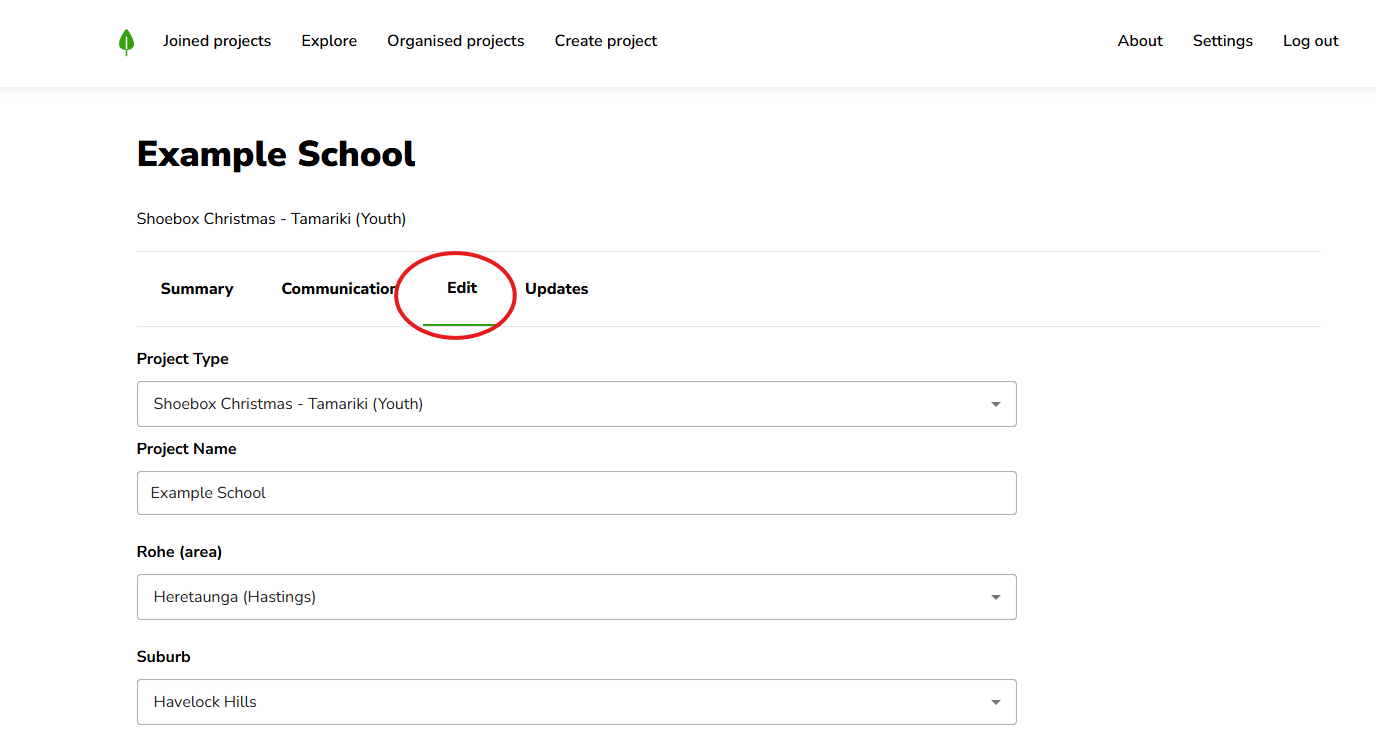
The Example School project page shows the Edit tab circled in red above project type, name, area, and suburb fields. Visible: Joined projects, Explore, Organised projects, Create project, About, Settings.

Adding or changing your welcome video

Your welcome video is your intro — a short clip that greets gifters when they land on your project.

Scroll right down to the bottom of the Edit screen to the Loom URL field. This is where your intro video goes. Paste in the link to your Loom video and it'll show on your project.

To change your welcome video, swap the link in the Loom URL field for a new one. To remove it, clear the field.
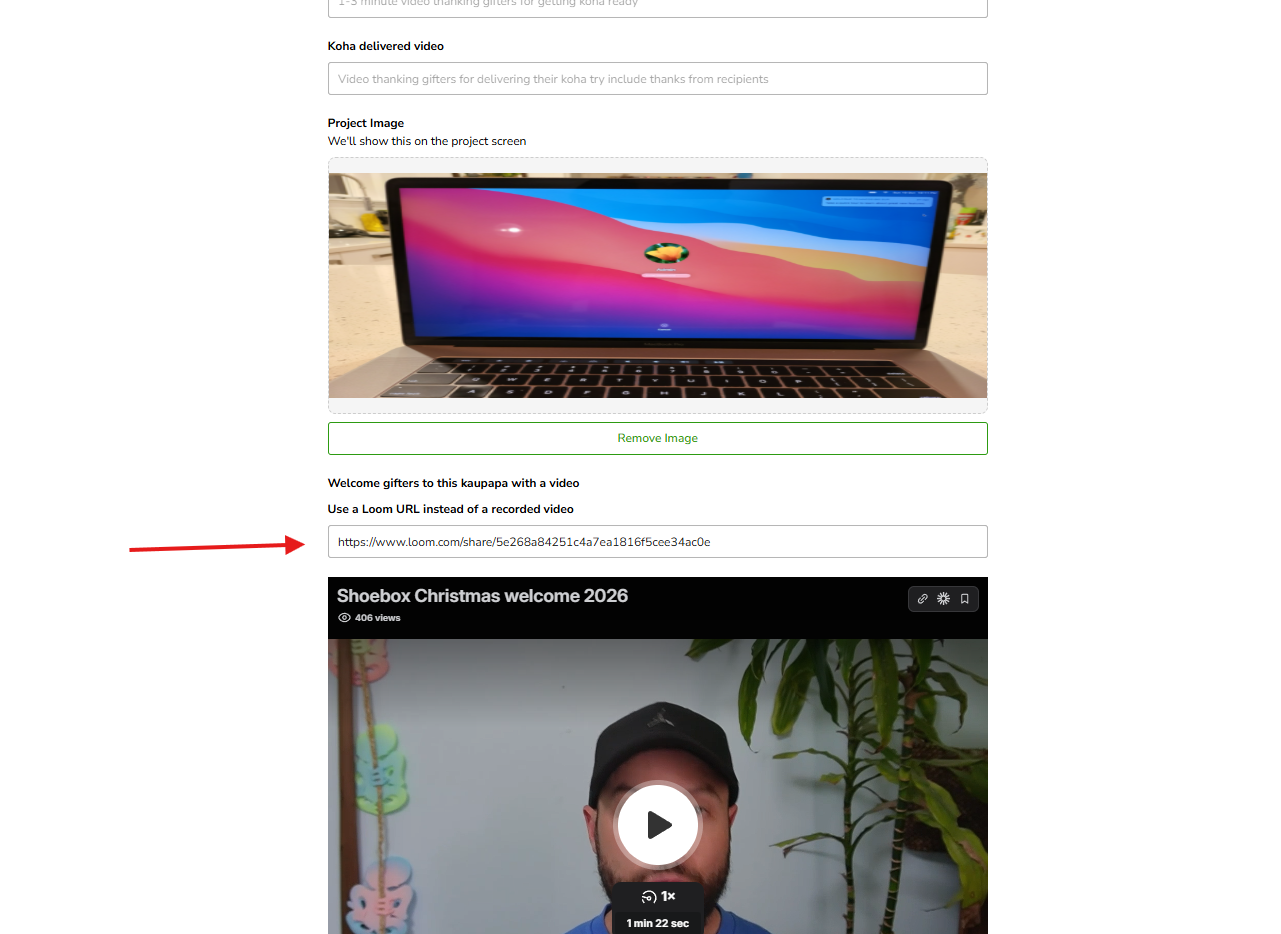
Project setup screen shows a project image, a Loom URL field for welcome gift videos, and an embedded video; a red arrow points to the URL field. Visible: Koha delivered video, Project Image, We'll show this on the project screen, Remove Image, Welcome gifters to this kaupapa with a video, Use a Loo

Saving your changes

Once your image and video are set, scroll down and save (the save button at the bottom of the Edit screen).
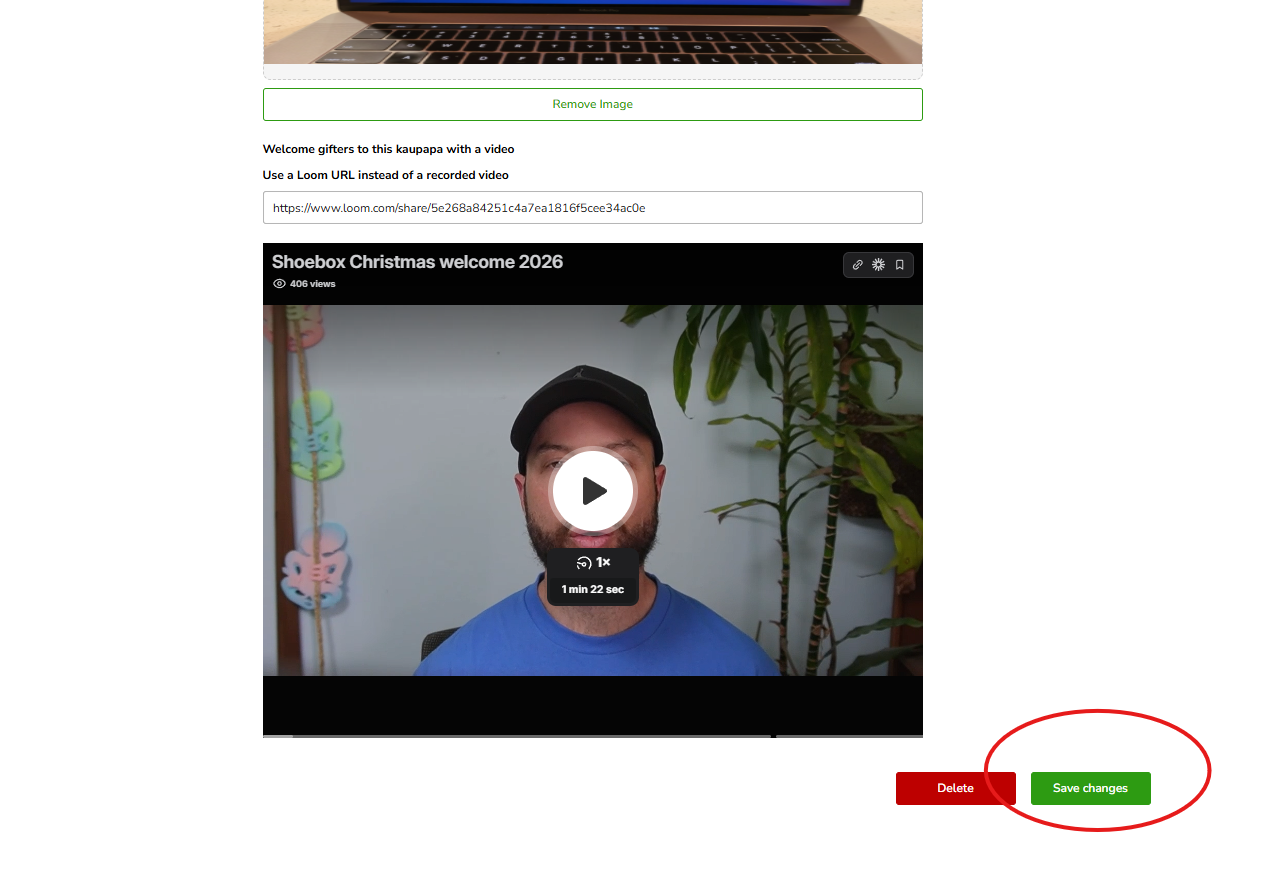
A welcome video editor shows a Loom URL and embedded “Shoebox Christmas welcome 2026” player; a red circle highlights the Save changes button beside Delete. Visible: Remove Image, Welcome gifters to this kauapa with a video, Use a Loom URL instead of a recorded video, https://www.loom.com/share/5e26

Still stuck?

If your image or video isn't showing the way you expected, kōrero mai — get in touch and we'll help you get it sorted.

Did this answer your question?
😞
😐
😁