First, log in to Koha Tree.
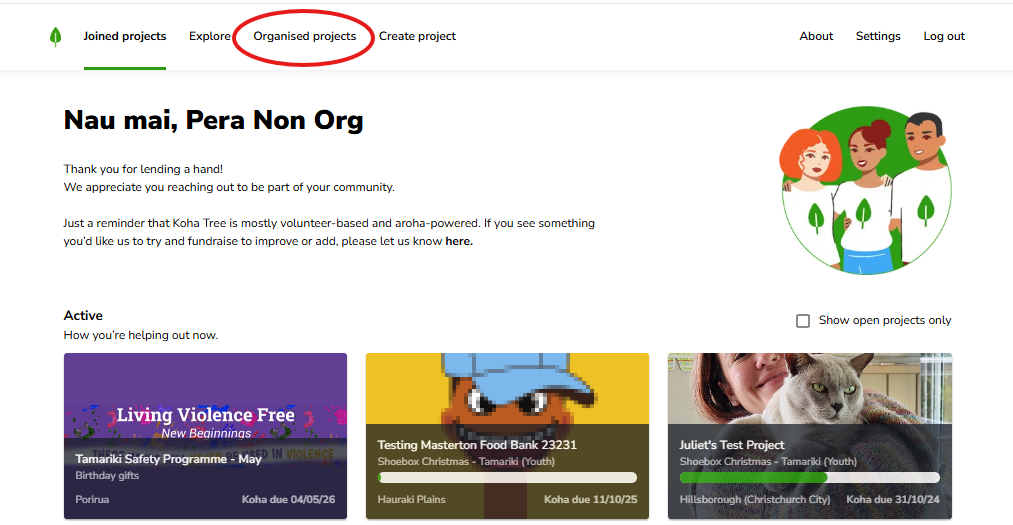
Then click Organised Projects. This shows the projects you're coordinating — your home base for anything you're running.
Open the project you need to update.
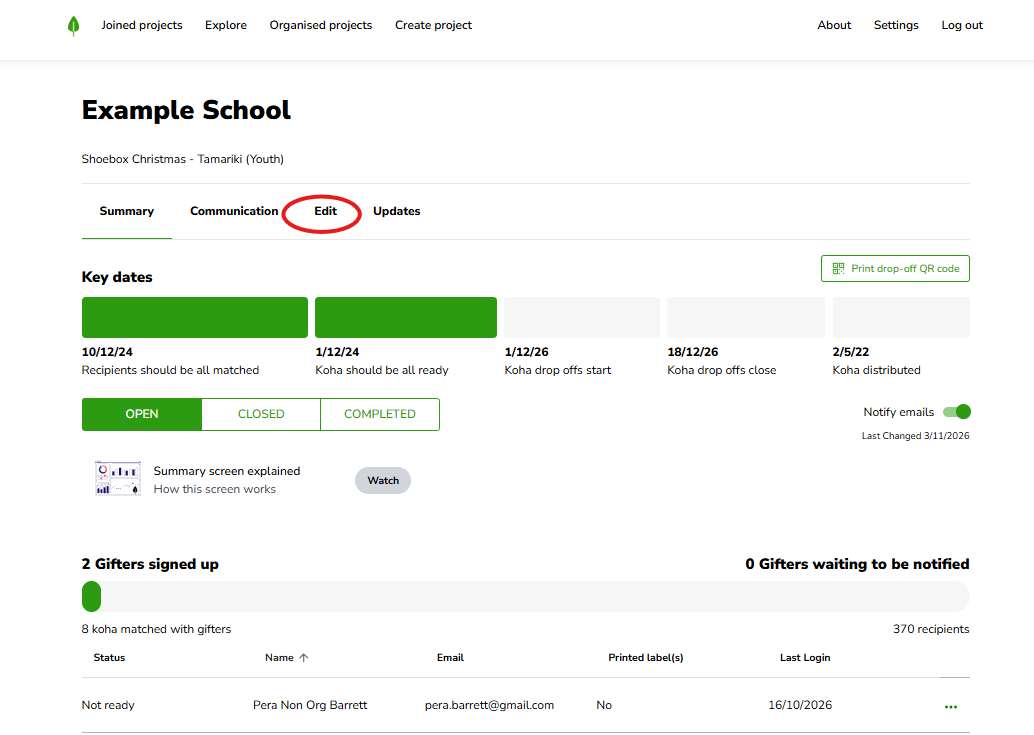
Along the top of your project you'll see a header menu: Summary, Communication, Edit, and Updates.
Click Edit. This is where all of your project's details live, and it's where you'll make any changes.
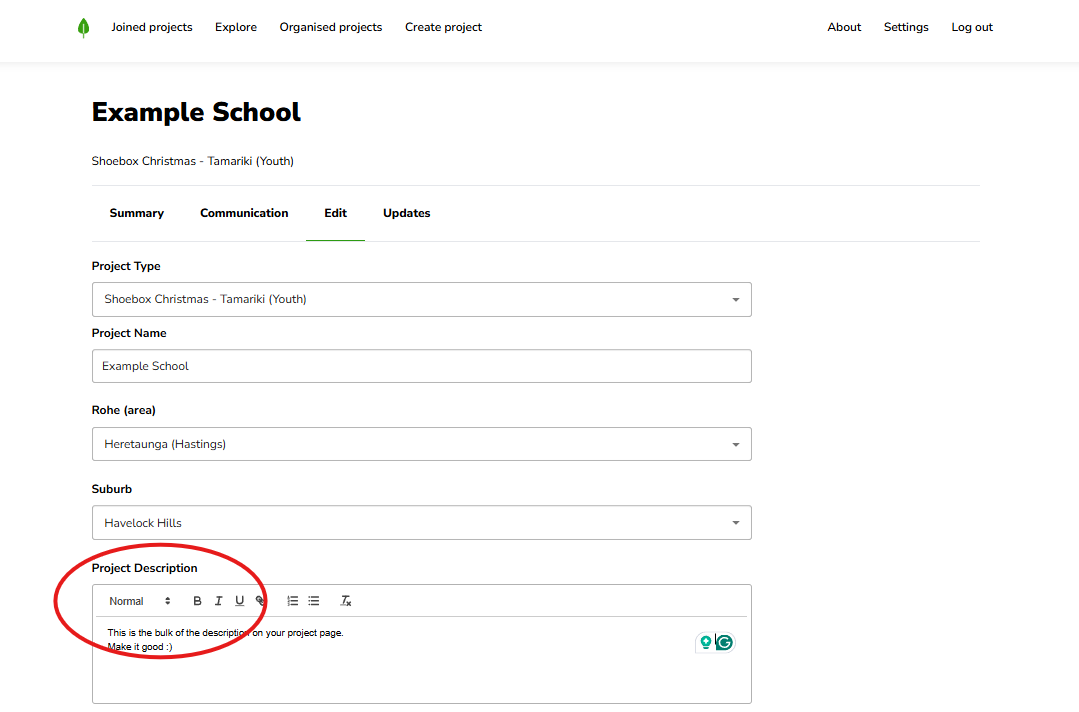
On the Edit screen, scroll down to the project description and update it however you need — this is the kōrero gifters read when they land on your project, so it's worth keeping it warm and clear.
When you've made your changes, scroll down and save (the save button at the bottom of the Edit screen).
The Edit screen is also where you look after everything else about your project. Each of these has its own quick guide:
Your drop-off dates — when drop-offs open and close, and when the two gifter reminders go out.
Your drop-off locations — add a second location, or update the days, hours and instructions.
Your frequently asked questions — keep the standard ones, remove any you don't need, or add your own.
Your profile image and welcome video — the picture on your project and your intro video.
If something's not looking right, kōrero mai — get in touch and we'll help you get it sorted.